Microsoft is retiring the old Office 365 connectors within Teams. To keep your UserVoice notifications working, you must transition to their new Workflow system. This change requires you to replace your current connector with a new Workflow Webhook URL to ensure a permanent and supported connection.
Note: This process requires an admin of Microsoft Teams and an admin of UserVoice to fully implement UserVoice for MS Teams.
Transitioning an Existing Setup
Important: Webhook URLs are unique to each channel. If you have UserVoice connected to multiple Teams channels, you must repeat these steps to generate a unique Workflow URL for every channel individually.
Create a new Workflow-based webhook following the official Microsoft instructions.
In the UserVoice Admin Console, navigate to Settings → Integrations → Microsoft Teams.
Edit your existing integration by finding the specific channel and clicking the pencil icon.
Update the webhook URL by deleting the old link and pasting the new Workflow URL into the Incoming Webhook URL field.
Save your changes to finalize the transition and resume your notification stream.
New Setup
- In Microsoft Teams, use the Workflows app to create a new incoming webhook for the Channel you wish to implement the Teams Integration. Click here for the step-by-step instructions.
- Once you have created the incoming webhook, you will see a URL to copy. Copy this URL to share with the UserVoice Admin.
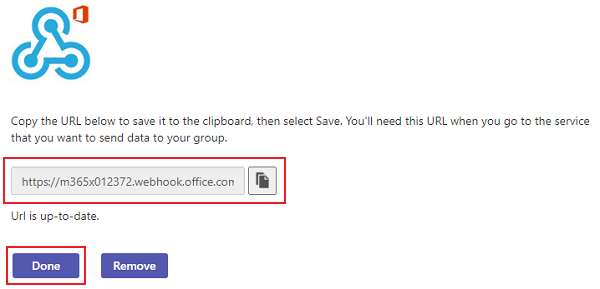
- Inside UserVoice, the UserVoice Admin will navigate to Integrations -> Microsoft Teams, and click the "Create" button.
- Paste the previously created webhook URL into "Incoming Webhook URL".
- Insert the Channel Name and Team Name.
-
Select the Forums/Categories via the drop down menu, and Events you want to have streamed into the Channel you selected previously.
- Repeat these steps for each channel implemented with the UserVoice's Team Integration as these URLs are all unique.
You’re done! The events you selected in UserVoice will now be streamed directly into your selected MS Teams channels!
Removing a Configuration
To remove your connection or configuration entirely:
Open the configuration in Teams via your configured apps and select the one you want to remove.
Make sure you are signed in to UserVoice to ensure the configuration is removed from both Teams and UserVoice simultaneously.
Click Remove to delete the integration.
Confirm removal in UserVoice if you were not signed in during Step 2 by navigating to Settings → Integrations → Microsoft Teams and clicking the trash can icon.