Quick Tip: For a smooth reset, make sure you're using the same browser for every step of this guide. If you switch browsers midway through, the link might not work!
If this is your first time logging in using the Email Authentication method, follow these steps.
-
In the sign-in menu at the top-right corner, click "Create an Account" underneath the password box.
- In the next screen, type in the email and click "Verify Email".
- You will see a pop-up requesting you to confirm in your email. Do not close out the pop-up box or navigate away from this page.
- Open the email from UserVoice requesting you to confirm your email. Click Confirm.
- This will open a new window, click confirm again.
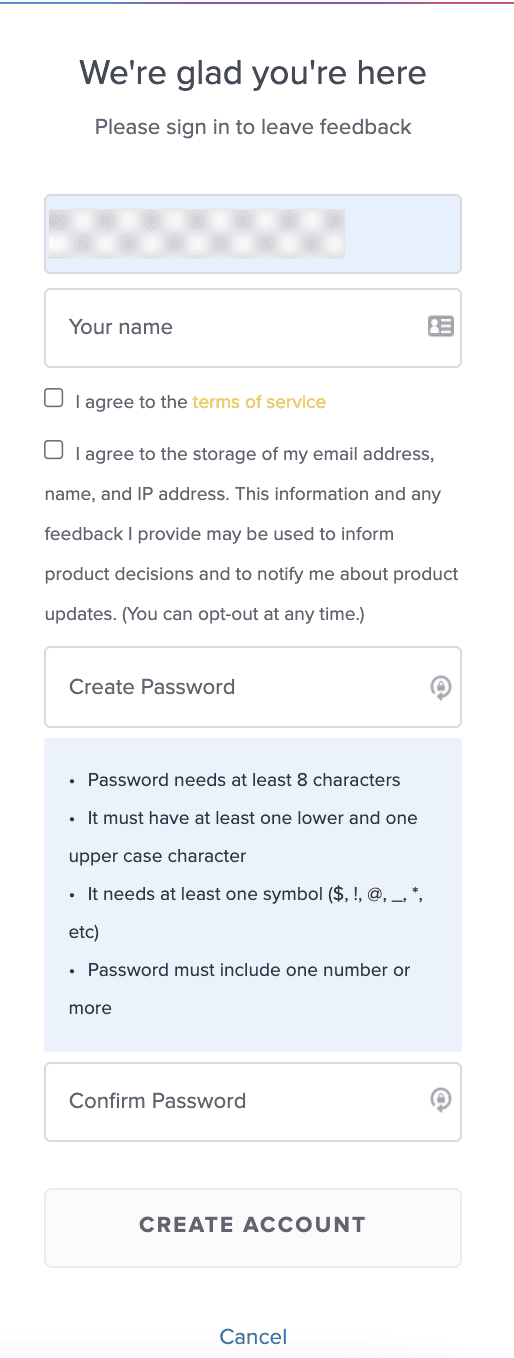
- Navigate back to UserVoice, and you will need to provide your name, a password, and agree to terms of service and storage permissions. Click "Create Account".
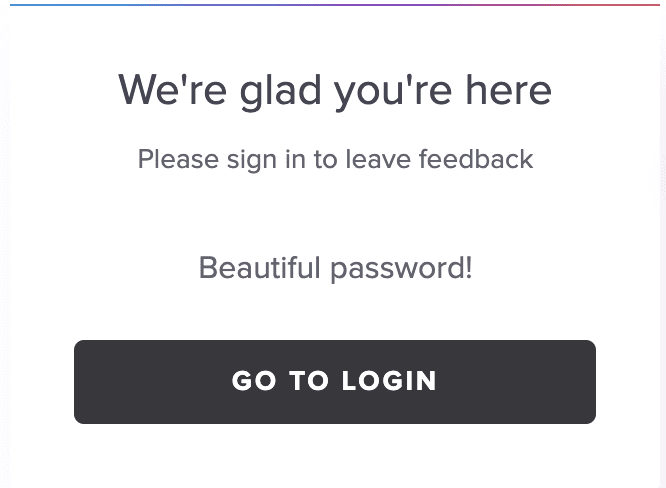
- You will receive a confirmation message. Click "Go to Login" and will navigate you back to the original sign-in menu. Sign-in with your email and password!
Troubleshooting
Help! When I click the link in the email, it says it is already expired. What do I do?
Ensure that you are completing this process all within the same browser but in different tabs.
Similarly, resolution can also be found via common troubleshooting steps, such as:
- Clear your browser’s cookies and cache, then restart your browser.
- Try using your browser in incognito mode
- Try another browser
- Try switching to another internet connection in case of firewall or VPN issues.
I am able to verify my email, but when I return back to the original login page, I do not see the ability to reset my password.
We typically see this occur when users X out the "pop up" in Step 3. Please ensure that you do not close this during your process.