The Idea Status Board shows your ideas as cards in columns, one column for each status. Drag a card to another column to post a status update. You can group the board into rows, filter it, and share the exact view with your team.
Open the board
In the admin console, go to Ideas & Feedback and select Status Board.
Use the toggle at the top to switch between Public statuses, which customers see, and Internal statuses, which only your team sees.
When to use the board and when to use the idea grid: The board is for seeing where ideas stand and moving them between statuses. The idea grid is better for long lists, editing many ideas at once, and sorting by any field.
Read the board
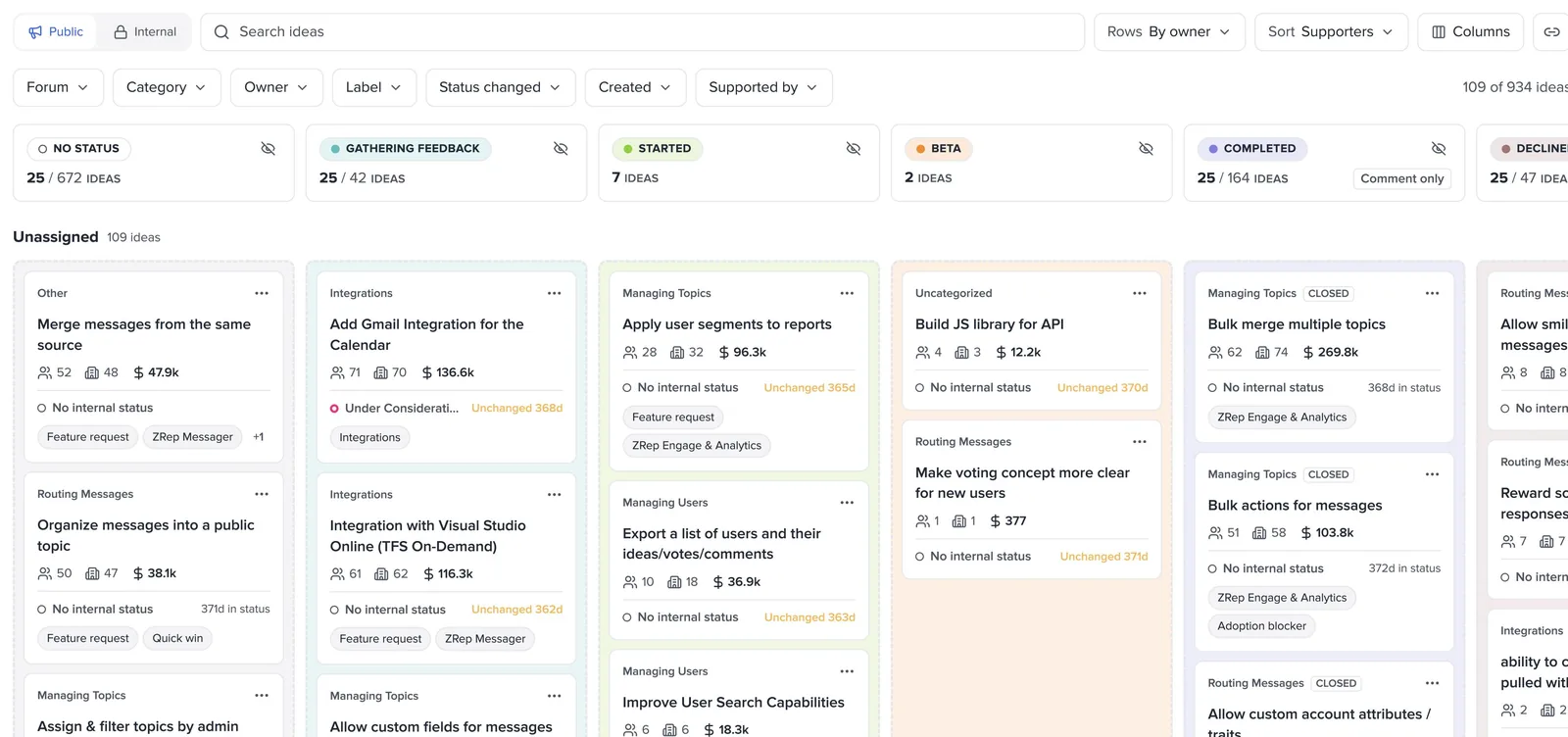
- Cards. Each card shows the idea's forum or category, its supporters, accounts, and revenue, its internal status, how long since its status last changed, its owner, and up to two labels.
- Column counts. Columns load 25 ideas at a time. "25 / 60 ideas" means 25 of the column's 60 ideas are showing. Select Load more at the bottom of the column to see the rest.
- Idea details. Select a card to open its idea sheet beside the board.
Move an idea to a new status
Moving a card opens the same status update form as the idea page, with the new status already chosen.
- Drag the card to another column. Or open the card's … menu and choose a status under Move to public status.
- In Post public status update, check the status and add a message if you like.
- Select Email subscribers to notify everyone following the idea. Leave it clear to change the status without sending email.
- Select Post Status. If you select Cancel instead, the card goes back to its column.
Note: You can't drop a card on No status. To clear an idea's status, choose No Status in the form's status list. This keeps a status from being cleared by accident.
Tip: Double-check your status update before posting, since subscribers may be notified right away. You can edit the status message later for small fixes like typos or punctuation. Edits aren’t sent to subscribers, so for bigger changes, post a new status update.
Group the board into rows
Select Rows to group cards into rows. If you group by owner, category, or label, dragging a card to another row also changes that field on the idea.
| Rows | Dragging a card to another row |
|---|---|
| By owner | Assigns the idea to that row's owner. |
| By category | Moves the idea to that category, within the same forum. |
| By label | Replaces the idea's label with that row's label. Drop the card on No label to remove the label. |
| By forum | Groups only. Ideas can't move between forums from the board. |
To change an idea's row and status at the same time, drag its card to a different row and column. You can undo a row change from the confirmation that appears after the move.
Filter, sort, and search
Filters combine, and each filter can take more than one value.
| Filter | Use it to |
|---|---|
| Forum and Category | Focus on one product area. Category lists only the categories in the forums you've chosen. |
| Owner | See one person's ideas, or ideas that are Unassigned. |
| Label | Focus on a theme, or find ideas with No label. |
| Status changed | Find ideas that changed status recently, or haven't changed in 90 days or more. |
| Created | Focus on new ideas or old ones. |
| Supported by | See every idea that one account supports. |
- Sort the cards in each column by supporters, revenue, accounts, or recently moved.
- Columns hides statuses you don't need. Statuses where customers can't vote or comment are labeled, such as Comment only.
- Search narrows the filtered board to the ideas that match.
Share a view
The board remembers your view: Public or Internal, filters, rows, sort, and hidden columns.
- Set up the view, for example Owner set to your team, rows by category, and cards sorted by revenue.
- Select Share (the link icon) to copy a link to the view.
- Send the link. A teammate who opens it sees your view, and can choose Back to my view or Save as my view.
Opening a shared link doesn't replace anyone's own view. Their saved view stays the same unless they choose Save as my view. Keep a link for each recurring meeting, such as weekly triage, account reviews, and leadership updates, so everyone starts from the same board.
Who can use the board
Every admin who can see ideas can open the board. Moving cards requires permission to edit ideas.
| Access | What you can do on the board |
|---|---|
| Can edit ideas | Move cards between statuses and rows, and post status updates. |
| View only | See, filter, and share the board. A note under the toolbar says the board is view only. |
Moving a card posts a normal status update. Subscribers, and contributors who captured feedback on the idea, are notified the same way they are when you post from the idea page.
FAQ
Q: Does moving a card email customers?
A: Only if you select Email subscribers before posting. Leave it clear to change the status without sending email.
Q: Can I move an idea to a different forum from the board?
A: No. Grouping by forum is for viewing only. To move an idea to another forum, edit it from its idea sheet.
Q: Why don't I see every idea in a column?
A: Columns load 25 ideas at a time. Select Load more at the bottom of the column. Your filters may also be hiding some ideas.
Q: Why can't I drag cards?
A: Your role doesn't include permission to edit ideas, so the board is view only for you. Ask an account owner to change your permissions.
Learn more
- UserVoice Academy Guide: The Idea Status Board: Move Ideas, Tell Customers: how teams use the board for weekly triage, finding stuck ideas, account reviews, leadership updates, and release day.
- UserVoice Academy Guide: Closing the Loop With Statuses: setting up your statuses and writing status updates customers will read.